Digital Marketing & SEO Services In Thrissur& Dubai
Hai, This is NIHAL T M I can provide The Best Digital Marketing services in Thrissur & Dubai I can help you guys to promote your business online. I have the 3-year experience in online marketing
Digital Marketing Services
FaceBook promotion
Instagram promotion
YouTube promotion
Google Ads
SEO Services
SEO Means certain changes to your
website design and content that makes your site more attractive to a search
engine. SEO is the process that organizations go through to help make sure that
their site ranks high in the search engines for relevant keywords and expressions
Simply Ranking Your Website on the First Page of Google or creating more traffic to your website
Bing Bing is the search engine from Microsoft launched on May 28, 2009. Microsoft calls the “Decision Engine,” because of the designed to return the search results in the format of organizes answers to the address to needs. The search on Bing, in addition to the providing relevant search results, the search engine also shows the related searches on the left-hand side of the search engine results page.
Open A Bing Webmaster Tools Account open the free Bing Webmaster Tools account going to the Bing Webmaster Tools sign-in up. then sign up using the Microsoft, Google or Facebook account. Alternatively, create a Microsoft account as the part of your Webmaster Tools sign-up process, select the Microsoft as the convenient account and click to Create one in the next step.
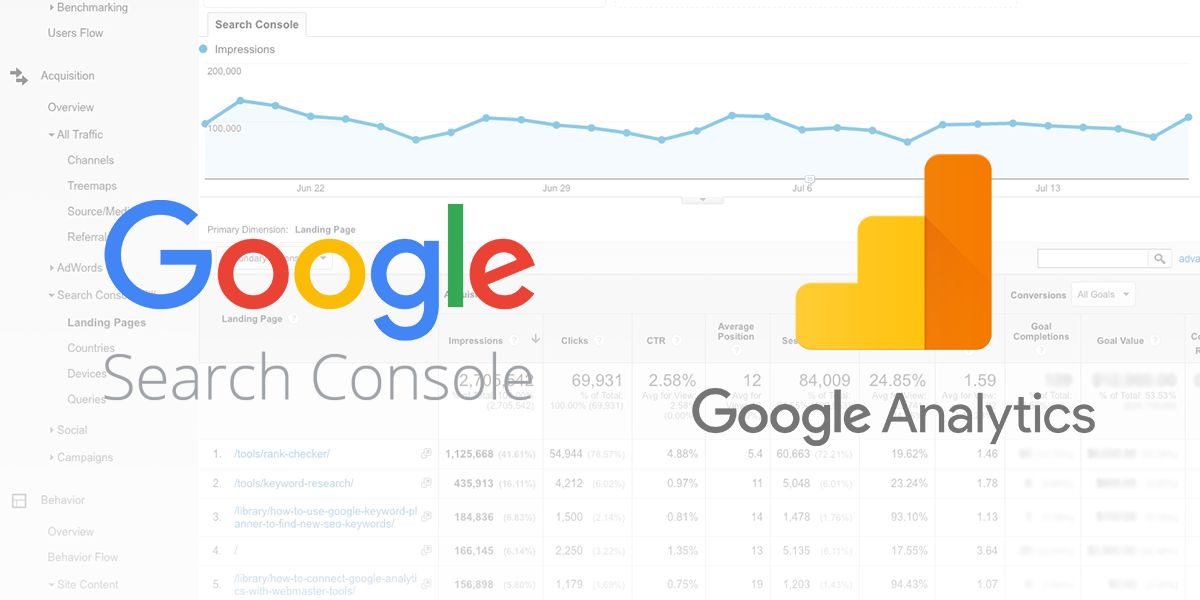
Webmaster Tools vs Google Analytics The simple way to the difference between Google Analytics and Google Webmaster Tools is the Webmaster Tools provides to information. You can say insights on a how search engines interact to with your site. The Google Analytics provides to information on a how website users to the interaction with your site.
What’s The Difference Google Webmaster Tools vs Google Analytics
A. Google Webmaster Tools
The Google Webmaster Tools how to Google looks like your site online. The Webmasters use to the tool to fix problems the site. The offers of tools for the webmasters which one can be improved to the visibility of your site and the fix problems
Crawl Errors The Google webmaster tools give to an information about the pages which one Google is unable to crawl. It’s very important because if Google cannot crawl your pages the search engine visibility may go down. The help of the tool, they can find out issues of any and resolve Search Queries
The information on your pages Google has returned to the searchers for the specific queries.
The Total number of search which returned pages from on your site.
The top search which returned to your pages in Google.
A number of times your pages to view in Google’s search results.
A number of times your listings to click on a particular search.
Percentage of The times your listing to clicked for a particular search.
The average position of your website for the particular search
Links
Links linking into your site from other websites.
Blocked URLs
Your site has to content don’t want Google or any other search engines to access to use a robots.txt file for specify to search engines should crawl your site’s content.
HTML Errors
The Google Webmaster Tools inform to you the Google detects any HTML errors on the site.
Fetch as Google
The Fetch as Google is a Google Search Console the feature that you simulate how to published web page looks to Google. The Google doesn’t guarantee they will index every URL we crawl.
Google Analytics is a freemium Web Analytics that provides statistics and basic analytical tools for search engine optimization and marketing Platform brand. Google Analytics is one of the most widely used in web analytics applications.
Visitor Reports
The total number of visitors your on website. The number of new visitors and returning visitors.
The time your visitors spend on your site.
A number of the pages in your visitor’s view.
A number of the visitors who landed on your site and left immediately.
Geographical location your website visitors.
The websites referred visitors to your site
Web Traffic Reports
The Total number of people visiting your site on a daily or monthly and the yearly basis. It provides your traffic stats to the previous years.
Details of Keywords
The keywords bring the traffic to your website.
The keywords produce most of the sales.
The keywords keep your visitors on your site for longer durations.
Content
The web pages to your visitors visit often.
The web pages bring you more traffic.
The pages the visitors most often leave your site.
The Blogger is just for blogs, WordPress is full of Content Management System. The platform designed to a help you build online content. The WordPress began life a logging platform. Like the Blogger and the WordPress is free, it won’t host your blog for you.
FeedBurner FeedBurner is the web feed management and the FeedBurner launched in 2004. FeedBurner has custom RSS feeds and management tools to the bloggers, podcasters, and web-based on contents publishers. The users can find out how many people are subscribed to their feeds and with what service/program they are subscribed.
Setting Your Feedburner Feed
⦁ Go to the Feedburner and sign in to the Feedburner with your Google Account.
⦁ Add your Blog URL to Burn Feed Right This Instant and click to Next.
⦁ The Leave RSS 2.0 source selected and click to Next.
⦁ On “Welcome” to the page, make to sure you are happy to with the title and the FeedBurner address (URI) to your news feed and click Next.
⦁ Congrats! the page clicks to Next.
⦁ On stats configuration, page are select Clickthroughs and want to more! and then click Next.
Adding The Feedburner Feed To Your Blog
⦁ Click the Publicize Tab > Chicklet Choose in your Feedburner account and then copy the HTML code.
⦁ Go to Appearance > the Widgets your blog dashboard.
⦁ Click on the desired Sidebar to expand.
⦁ Add the text widget to the sidebar by dragging from the Available Widgets into the Sidebar area on right.
⦁ The widget will be automatically open and just add HTML code from FeedBurner, click to Save and Close it.
Adding The FeedBurner To The Email Subscription
⦁ Click on Publicize Tab > Email Subscription in your Feedburner account and click on Activate.
⦁ Copy the HTML code.
⦁ Go to the Appearance > Widgets in your blog.
⦁ Click on the Sidebar to expand.
⦁ Add the text to widget the sidebar by dragging from the available in Widgets on a Sidebar area on right.
⦁ The widget will be automatically open and just add the HTML code form Feedburner the email subscription, to click Save and Close it.
⦁ The readers simply enter to the email address and then click on the “Subscribe” and Feedburner emails your post on that day after has been published on your blog.





 Nihal T M SEO Analyst